PDF Compression Practical Tips - How to Reduce File Size Without Losing Quality
Last week, I was helping a friend organizing some scanned documents, and we hit a wall — every single PDF was over 50MB, making them impossible to email. I tested half a dozen online tools; some made the text blurry, others asked for a credit card. After spending an afternoon testing, I found the best ways to reduce PDF size without losing quality. Here is what I found.
Why Are My PDFs So Huge?
Many people don't realize that PDF size is usually driven by three main factors:
- Scan Resolution - Scanners default to 300dpi, but 150dpi is usually enough for screens.
- Embedded Fonts - Unique fonts can add megabytes to a text-only file.
- Uncompressed Images - Some PDF creators simply don't optimize images.
Method 1: The Browser-Based Solution (Recommended)
I found that Omibox's PDF Compressor struck the best balance between speed and quality. Since it runs in the browser, I didn't have to wait for 50MB files to upload.
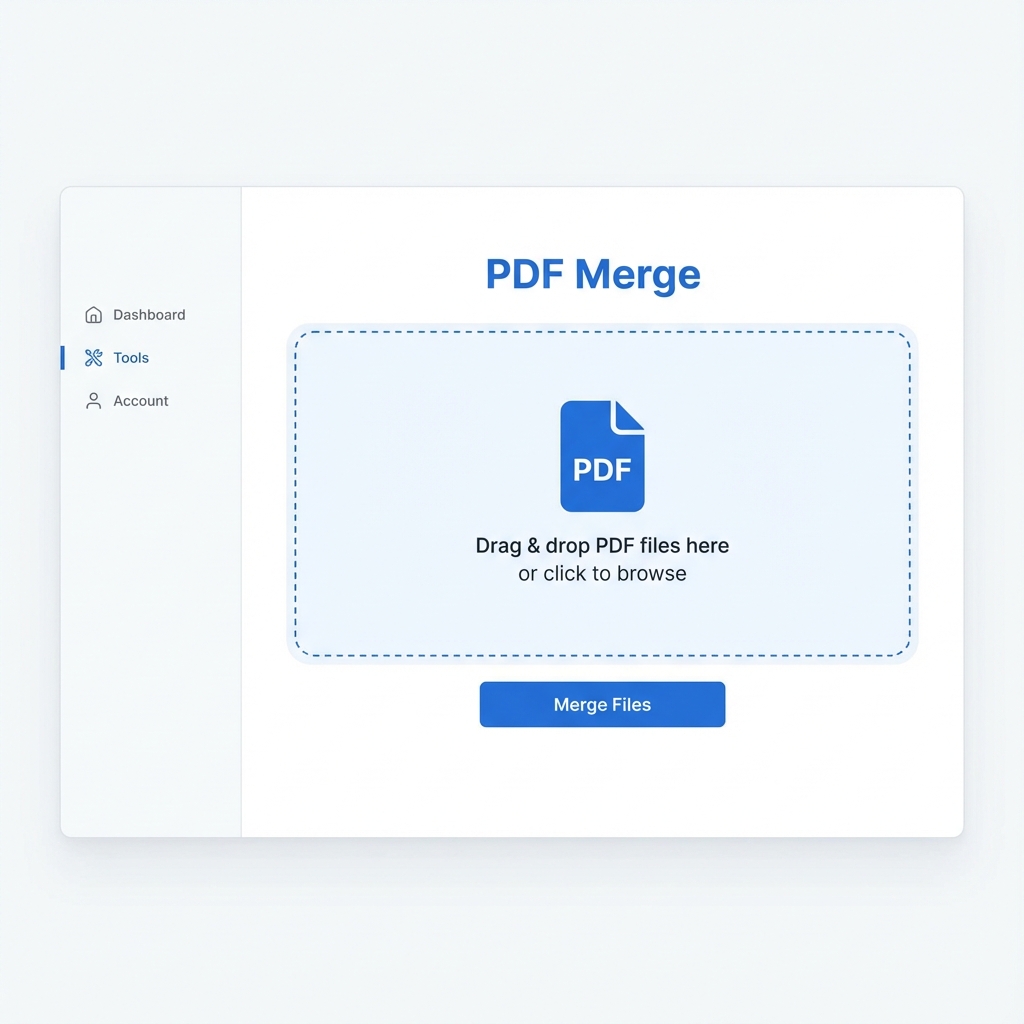
Open the Tool
Go to the Compress PDF page.
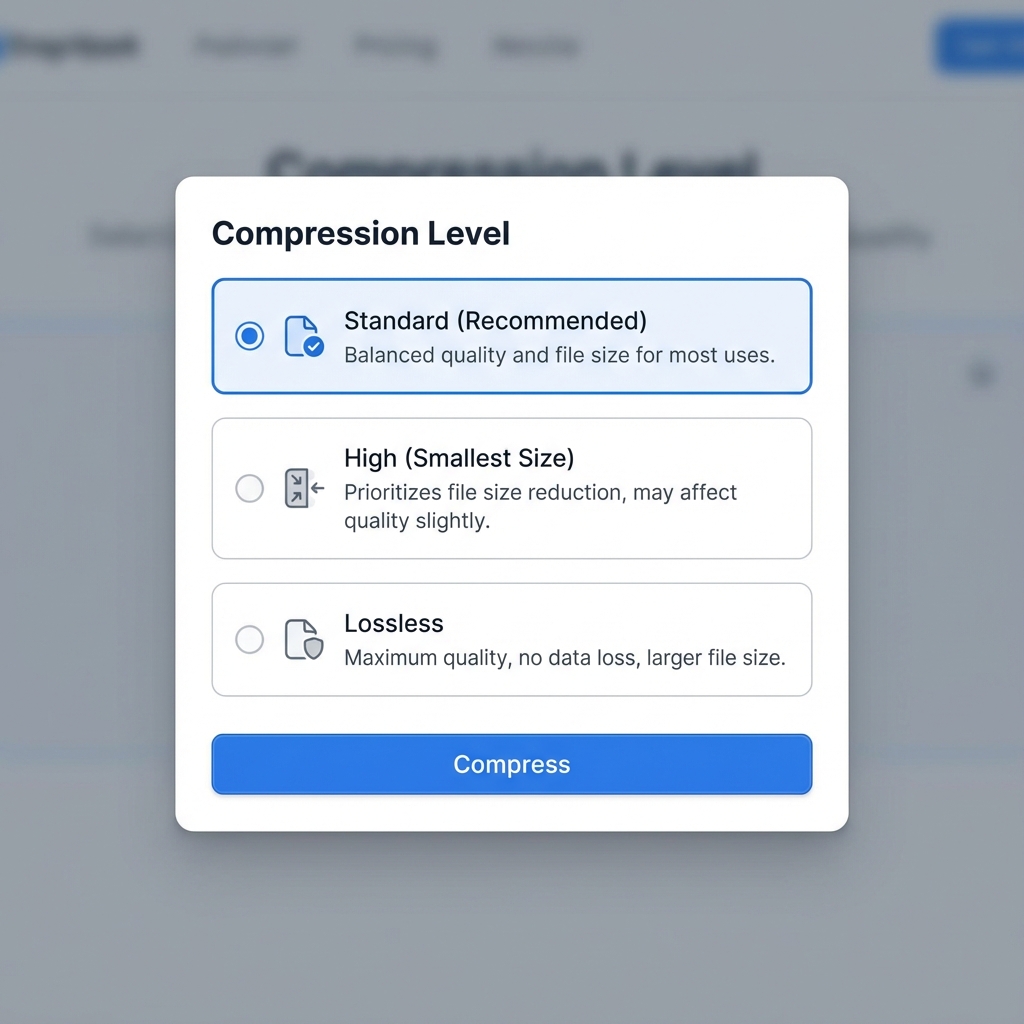
Choose Your Compression Level
This is the key part. Most tools don't give you a choice. Here you can pick:
- Standard: Good for documents with text and some images.
- High: Best for archiving, might slightly reduce image quality.
Download Instantly
The processing happens on your device. My 45MB file was reduced to 8MB in about 5 seconds.
Comparison: Omibox vs. Others
| Feature | Omibox | Adobe Acrobat Pro | Other Online Tools |
|---|---|---|---|
| Cost | Free | $19.99/mo | Freemium |
| Privacy | 100% Local | Cloud Sync | Upload to Server |
| File Limit | Unlimited | Unlimited | Usually 50MB |
| Watermark | None | None | Often Added |
💡 Pro Tips
- Don't Over-Compress: Avoid "Extreme" compression settings if the document is for printing.
- Black & White: If color isn't needed, converting to Grayscale can save 50% space instantly.
- Always Keep Originals: Compression is irreversible. Always keep your original high-res copy safe.
Share this article
Ready to boost your productivity?
Experience the power of Omibox tools mentioned in this article. No download required.
Related Articles
View allHow to Edit PDFs Privately: Stop Uploading Your Sensitive Docs
Did you know most online PDF tools save your files to their servers? Learn how to use Omibox's client-side tools to merge, split, and compress PDFs without data ever leaving your device.
Convert Excel to PDF Without Losing Table Formatting
Learn how to create professional PDF reports from your Excel spreadsheets instantly.
PDF Security Protection Guide - How to Password Protect Your Documents
Complete guide on PDF encryption and password protection. Learn best practices for securing sensitive documents.